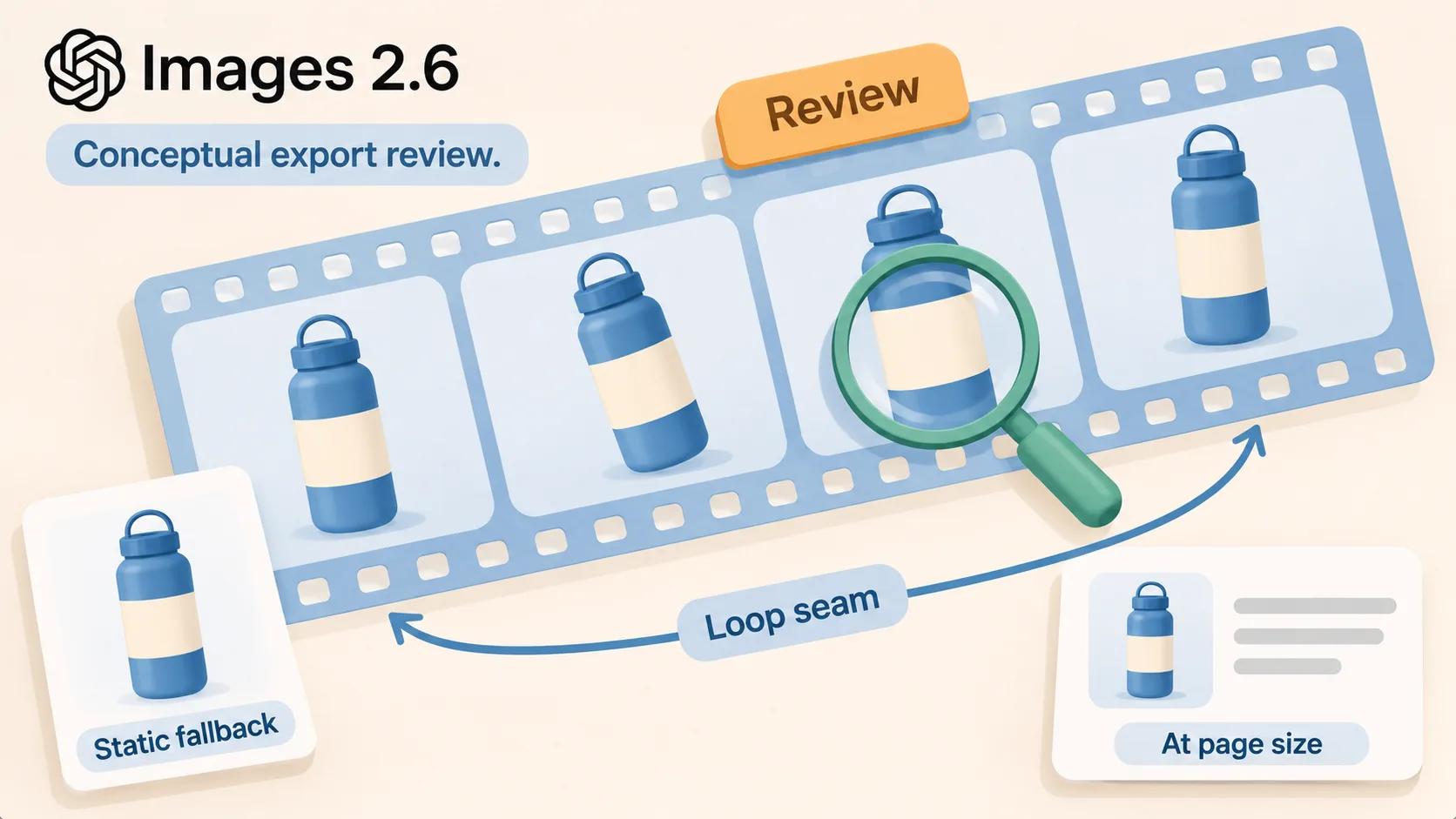
What changed, and where
OpenAI announced GPT Image 2.6 on November 4, 2026, with two API models, Flare and Sunburst, and animated GIF generation. The current API guide lists GIF as an output format for both the image generations and image edits endpoints. ChatGPT GIF creation is rolling out; check availability in your account before planning a workflow.
That release creates a practical website question: when is an animated product visual ready to replace the still image already approved for a page? The answer depends on the exported file in its intended placement, not on how convincing a preview looks in a chat window.
Treat a preview as a draft
Start with a product whose shape, color, packaging and label can be checked against an approved still image. A short loop might make one detail easier to notice, but motion can change how a label reads or make the object appear different across frames. The question is whether the finished asset still shows the actual item accurately.
An existing photograph can be supplied as a reference to an image edit request, and the current API guide lists GIF output for both image generations and edits. That documents API options, not availability in every ChatGPT account. Before a pilot, confirm that the specific surface and workflow available to the business can accept the needed reference and deliver the intended file. If not, treat a generated animation as a separate draft to compare with the approved image.
Inspect the file from beginning to end
Open the downloaded GIF and inspect every frame. Compare the product’s silhouette, color, label, logo and details that affect what a customer believes is being shown. Check the transition from the last frame back to the first: a jump, flash or abrupt change can distract even when each frame looks acceptable.
Review the animation at the size it will occupy on the actual page. A detail legible at full size may blur or become too small in a phone product card. Record the file’s dimensions and weight, place it in the page layout, and confirm it loads and plays as intended. These are acceptance checks for the delivered file, not claims about what the model will preserve.
Compare the work with the still image
An animation should earn its place. Compare the full work of producing and reviewing it with the static path: prompt changes, downloads, frame inspection, loop repair, export adjustments and page checks all count. The still image has already passed approval; a GIF needing repeated correction may not be a better asset, even if it attracts attention in a preview.
Keep the static image available as a fallback. If the animation obscures a product fact, does not loop cleanly, is hard to inspect at the intended size, or requires more repair than the placement justifies, retain the still. There is no universal file-size or review-time cutoff here. The business should record what the actual page and actual file require before deciding.
Make the decision at the page
A useful first evaluation is one product, one page placement and one proposed loop. Save the original still, exported animation, file properties and reviewer’s notes together. Ask the page owner to accept or reject the GIF after checking the full file and rendered placement. Keep the still live until review is complete.
If the animation preserves product truth and communicates better in the real layout, the owner can decide whether the added review and maintenance work is worthwhile. If it does not, the static image remains a complete answer. The next step is to map the page’s image requirements and acceptance checks before choosing a production workflow.